LYNXED
 Blog / guide
How to play XENO // BREACH on iPhone and Android
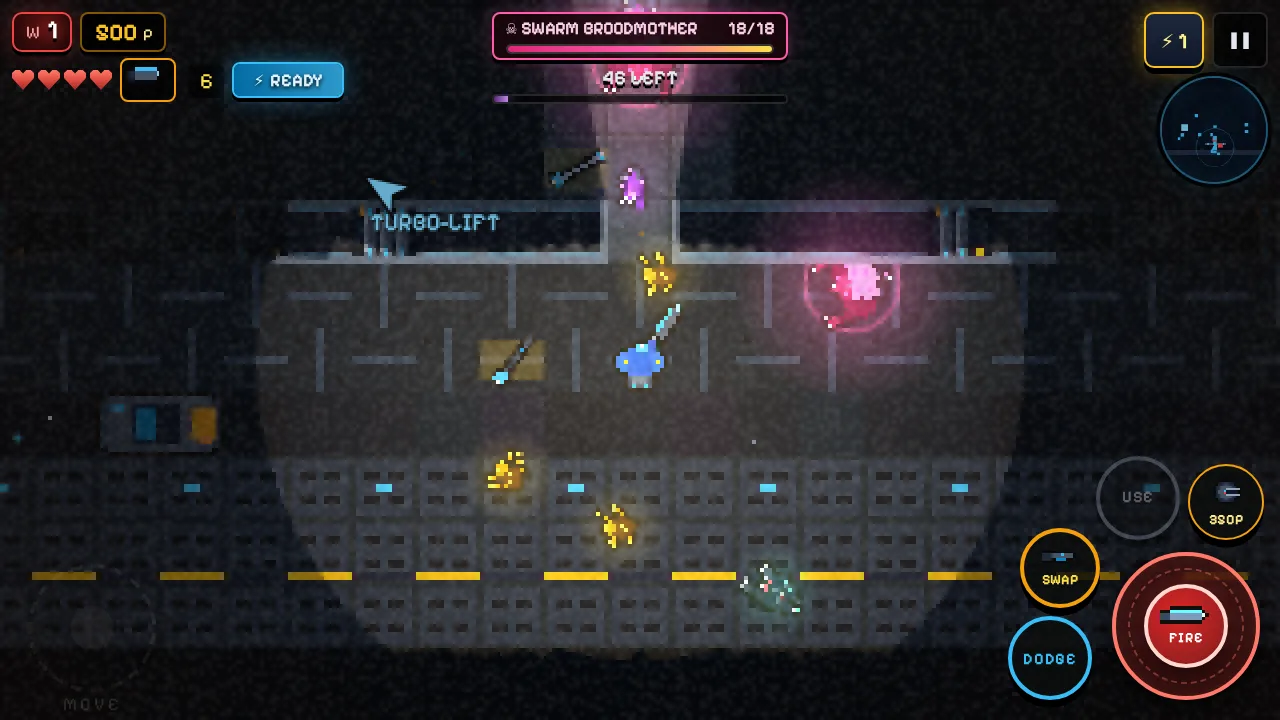
You can play XENO // BREACH on any iPhone or Android phone straight from the browser: open the link and tap Deploy. There's no app store, no account and no download. For the best version, add it to your home screen. It then opens full screen like an app and plays offline after the first visit.
Play in the browser
Open XENO // BREACH in Safari on iPhone or Chrome on Android. The game spots a touch screen and switches to touch controls. It also does this in any window narrower than 920 pixels or shorter than 560. Turn the phone sideways: the game is laid out for landscape.
The first deck is free. The full game is a one-time $4.99, with no ads and no energy timers.
Add it to your home screen on iPhone
- Open the game in Safari.
- Tap the Share button (the square with an arrow).
- Scroll down and tap Add to Home Screen, then Add.
- Open XENO // BREACH from the new icon.
From the icon it runs without Safari's address bar and toolbar. On recent versions of iOS, other browsers such as Chrome can do the same from their own Share menu.
One thing to know: on iPhone, the home-screen app keeps its own storage, separate from Safari. Progress you make in a Safari tab doesn't show up in the icon version, and the other way round. Pick one and stick with it.
Install it on Android
Open the game in Chrome. Then either:
- Tap INSTALL on the title screen. It appears when Chrome offers to install the game, and says "plays offline" underneath. Or:
- Open Chrome's ⋮ menu and tap Install app (on some phones, Add to Home screen).
The installed version opens full screen, with no browser bars at all.
Playing offline
Your first visit caches the game's files on the phone. After that, the home-screen version starts without a connection. Music is cached as you hear it, so tracks you've already heard are there offline too.
When we ship an update, the title screen shows NEW VERSION READY · RESTART. Tap it when you're ready. It never cuts into a run.
Touch controls
| What | How |
|---|---|
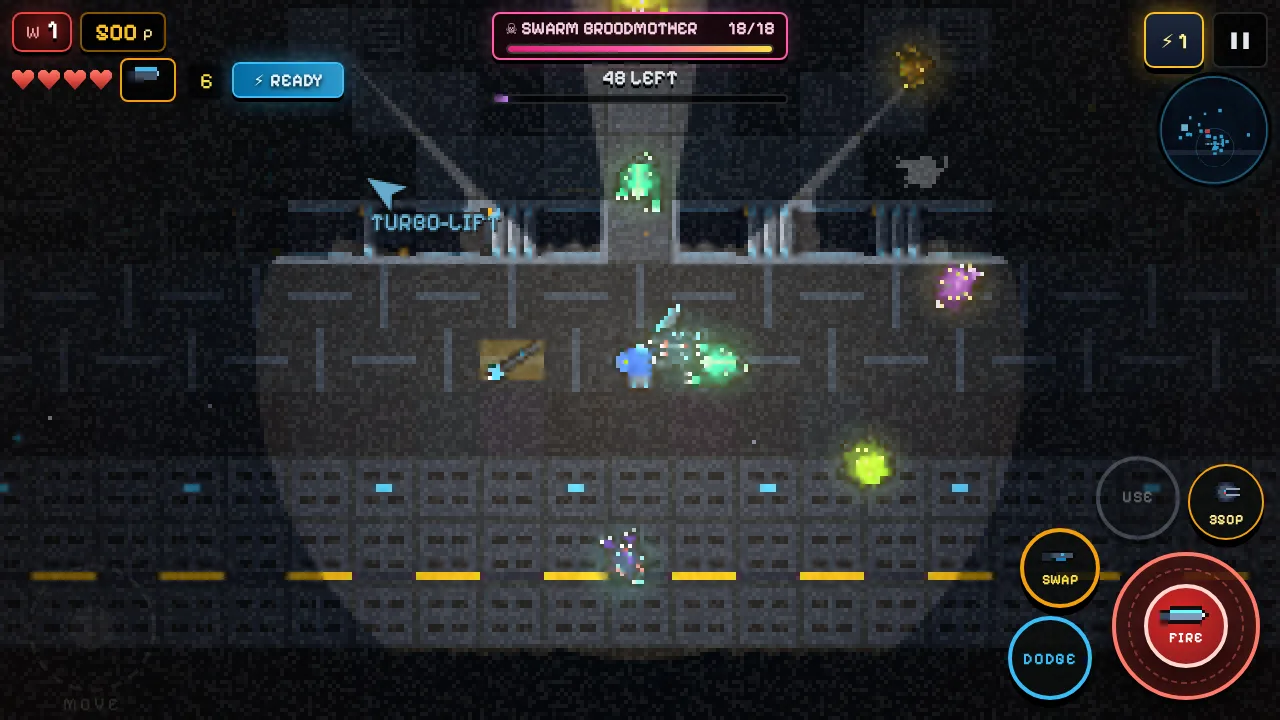
| Move | Put your thumb anywhere on the left side and drag. The stick appears where you touch. |
| Aim and fire | Drag the big FIRE stick toward a target. Hold it without dragging and it aims at the nearest xeno for you. |
| Charge weapons | Hold FIRE to charge, let go to release. |
| Dash | DODGE. |
| Swap melee / gun | SWAP shows the weapon you'll swap to. |
| Swap guns | Tap the small second-gun chip next to your hearts. |
| Weld, buy, open | USE. The label changes to WELD, BUY or OPEN with the cost when something is in reach. |
| Build a turret | The turret button shows the selected defense and its cost in points. |
| Overdrive and sonar | Tap the ⚡ chip at the top left when it reads READY. |
| Upgrades and Tactical Command | The ⚡ button at the top right. It shows your unspent skill points. |
| Start the next wave early | START during the prep phase. |
When you aren't firing, your marine aims the way you walk. That's usually enough for melee: walk into a pack and tap FIRE.
On phones your suit lamp stays on. The desktop version lets you switch it off with F. The trade-off it creates is explained in Designing light and noise.
On Android, big hits and explosions buzz the phone. iPhone browsers don't let web pages use the vibration motor, so there's no buzz there.
Screen orientation
Landscape is the default. To change it, go to Settings → Screen Orientation and pick Landscape, Portrait or Rotate. Browsers only allow a page to lock the screen when it's full screen. Elsewhere, your phone's own rotation setting decides.
Your save lives in the browser
There's no account, so your progress is stored in the browser on that phone:
- your Xeno Cores and Xeno Vault upgrades
- your best wave and the ship logs you've decoded
- your settings
That has consequences:
- Clearing the browser's site data deletes it.
- Private or incognito tabs may not keep it after you close them.
- Each browser and each device has its own save. There's no cloud sync yet.
If you buy the full game on the web, you get a purchase code that looks like ABCD-EFGH-JKLM-NPQR. Keep it somewhere safe. On another browser or phone, tap Restore purchase and type the code to unlock the game there too.
Tips for small screens
- Play the Bootcamp Tutorial Deck once. It walks you through dodge, turrets, vents, skill trees and Overdrive on the touch buttons.
- Turn up the brightness. The game is dark on purpose, and a dim screen hides what's at the edge of your lamp.
- Try Squad Co-op. The AI marines cover the angles your thumbs can't. See our squad guide.
FAQ
Do I need the App Store or Google Play?
No. XENO // BREACH runs in the browser. Store versions for Android and iOS are coming, but you don't need them to play.
Does it work on tablets?
Yes. It runs in any modern browser, and touch screens get the same controls.
Can I move my save to a new phone?
Not yet. Saves stay in the browser they were made in. A full-game purchase moves with its purchase code.
Why did my progress disappear?
Usually the browser's site data was cleared, or you opened the game somewhere else: a different browser, a private tab, or the home-screen icon instead of Safari on iPhone.
New to the game? Read your first run next.